
How to Connect Microsoft 365 to Legal Workspace
- Details
- Written by: Legal Workspace
To connect Microsoft 365 to Legal Workspace, open Settings, scroll down and click Manage and connect third-party apps, then select Connect Microsoft account. Sign in to your Microsoft account in the pop-up window, complete two-factor authentication if prompted, and accept the requested permissions. You will be redirected to the integrations page, where the button will display Connected once the connection is successful.
- Video: 1:24
- Takes about 2 minutes
- Updated: 16 October 2026
What do I need before connecting Microsoft 365?
Before you connect Microsoft 365 to Legal Workspace, make sure you have:
- Access to Settings in Legal Workspace, so you can open Manage and connect third-party apps.
- A Microsoft 365 business account, the one you use for Outlook and Office.
- Your Microsoft sign-in details, your Microsoft 365 email address and password.
- Your phone or authenticator app, if your account uses two-factor authentication (2FA).
- Pop-ups allowed for Legal Workspace, because the Microsoft sign-in opens in a pop-up window.
Some firms require a Microsoft 365 administrator to approve new apps. If you can’t accept the permissions when you connect, ask your firm’s Microsoft 365 administrator to approve Legal Workspace.
How to connect Microsoft 365 to Legal Workspace, step by step
Step 1: Open Settings
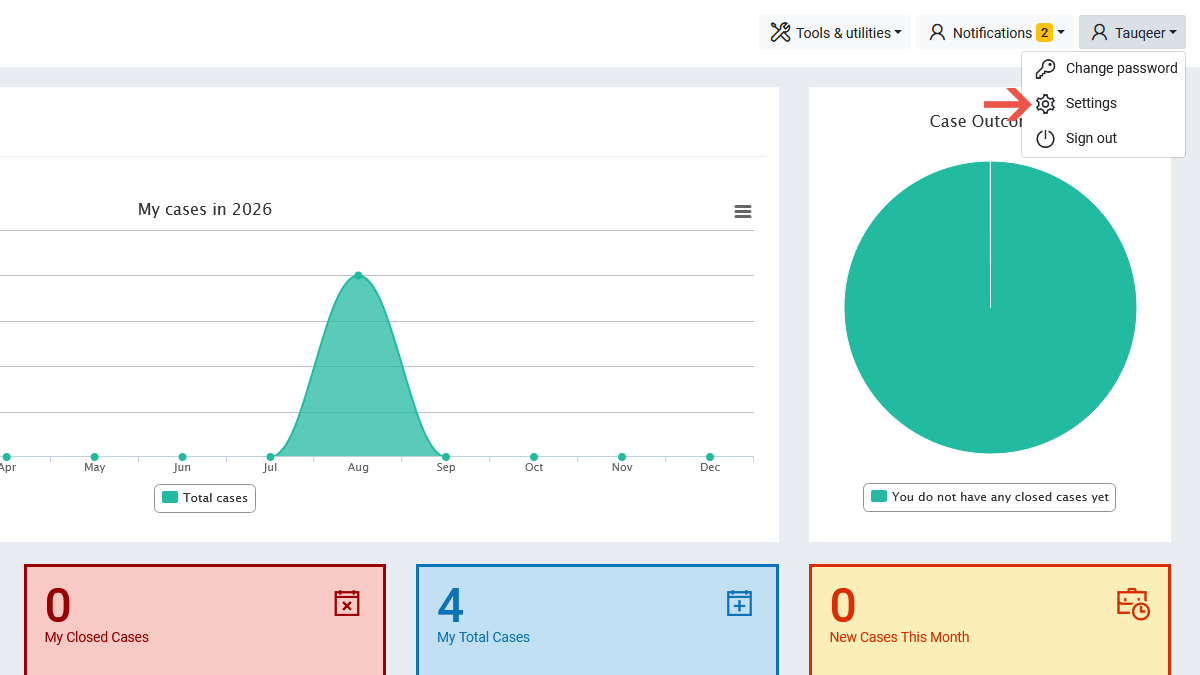
Log in to Legal Workspace, click your name in the top right corner, then click Settings in the menu that opens.
Step 2: Open "Manage and connect third-party apps"
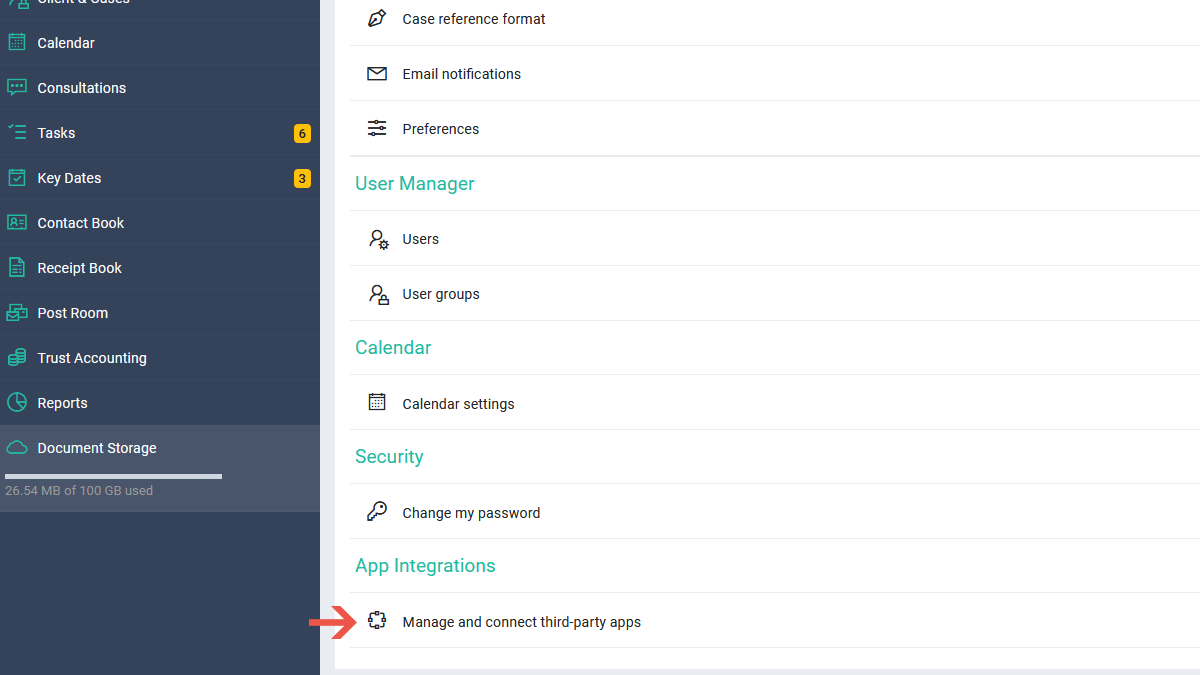
Scroll down the Settings page until you find the Manage and connect third-party apps link, and click it. This opens the integrations page, where you manage your connected apps.
Step 3: Click "Connect Microsoft account"
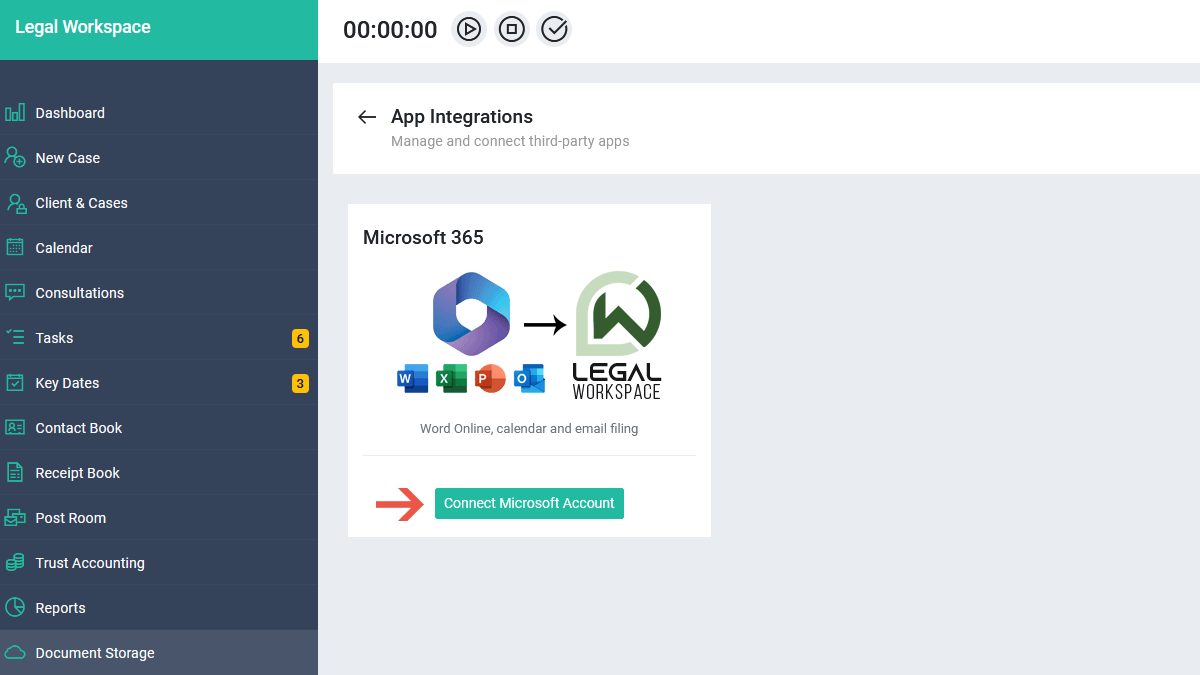
On the integrations page, click the Connect Microsoft account button. A Microsoft sign-in window will pop up.
Nothing happened? Your browser has probably blocked the pop-up. Look for a blocked pop-up icon in the address bar, allow pop-ups for Legal Workspace, and click the button again.
Step 4: Sign in to Microsoft and verify with 2FA
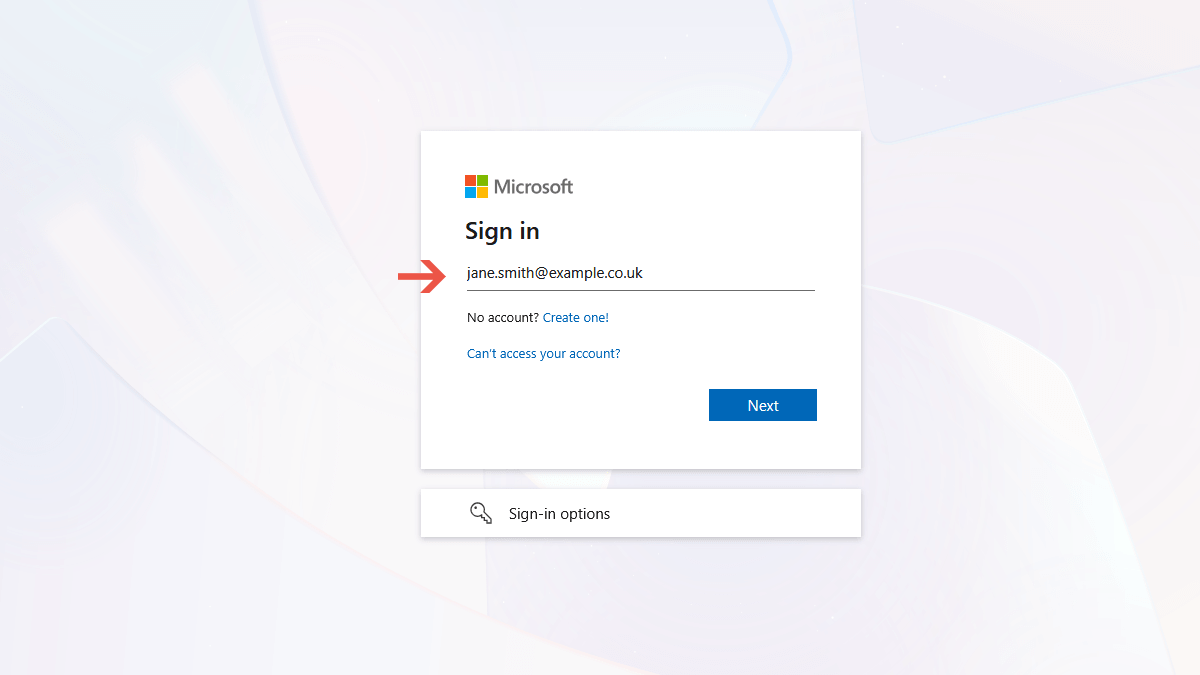
In the pop-up window, enter your Microsoft 365 email address and click Next, then enter your password and click Sign in. If your account uses two-factor authentication, approve the request in your authenticator app or enter the code sent to your phone.
Your password stays with Microsoft. You sign in on Microsoft's own page, so Legal Workspace never sees or stores your Microsoft password.
Step 5: Accept the permissions
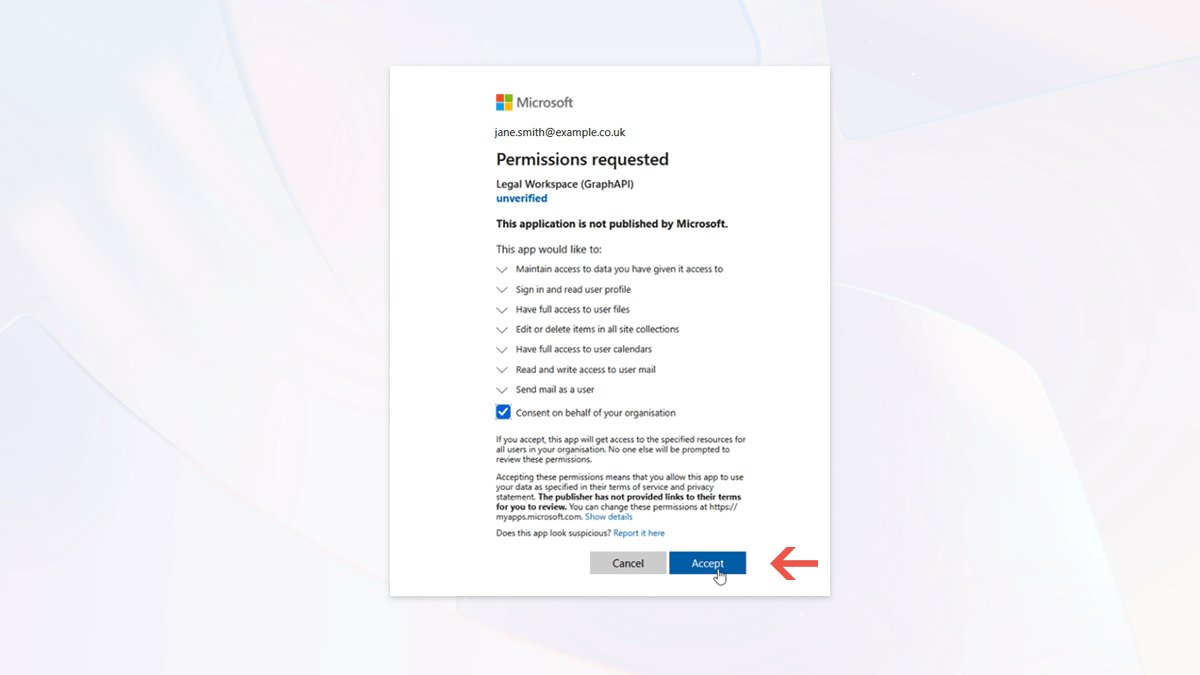
Microsoft will show a permissions screen listing what Legal Workspace is asking to access. Review the list and click Accept.
If you've connected before, or your firm's administrator has already approved Legal Workspace for everyone, Microsoft may skip this screen. That's normal: go straight to step 6.
Seeing "Need admin approval"? Your firm's Microsoft 365 administrator has restricted which apps staff can connect. Ask them to approve Legal Workspace in the Microsoft admin centre, then try again.
Step 6: Check Microsoft 365 is connected
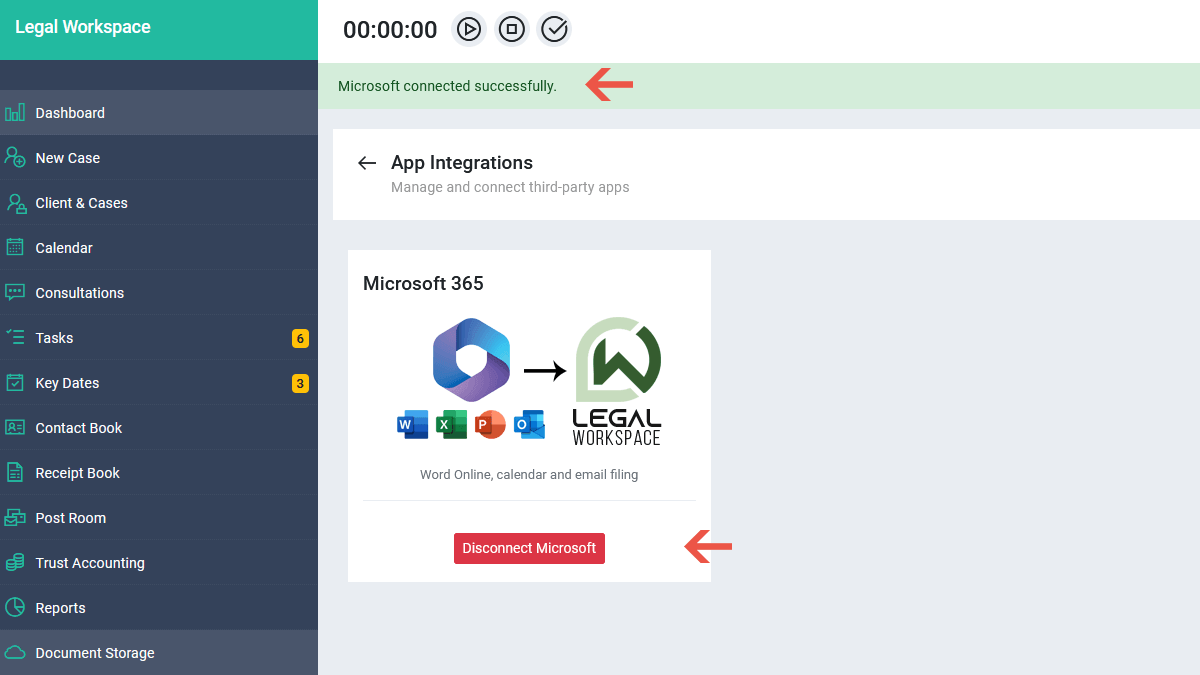
The pop-up closes and you're taken back to the integrations page. You'll see the message Microsoft connected successfully at the top, and the button now says Disconnect Microsoft. This means Microsoft 365 is linked to your Legal Workspace account and you're ready to use everything the integration offers.
What can you do with the Microsoft 365 integration in Legal Workspace?
Connecting Microsoft 365 lets you edit Word, Excel and PowerPoint documents online, prepare and send documents for e-signature, sync your Outlook calendar, and file emails and their attachments to the right matter automatically, all from inside Legal Workspace. You connect once, and every feature below works from that single connection.
Edit Word, Excel and PowerPoint documents online
Open any Word, Excel or PowerPoint file from a matter and edit it in your browser with Microsoft 365 online. When you save, the updated version goes straight back to the matter, so there's no downloading, re-uploading or wondering which copy is the latest.
Open any Word, Excel or PowerPoint file (.docx, .xlsx or .pptx) from a matter and edit it in your browser with Microsoft 365 online. When you save, the updated version is stored in the matter's documents section, so there's no downloading, re-uploading or wondering which copy is the latest.
Legal Workspace also creates a PDF copy of the document automatically each time you save, so you always have a version ready to share with your client.
Prepare and send documents for e-signature
Make final changes to a document in Word online, then send it for e-signature directly from the matter. Once everyone has signed, the completed PDF is saved back to the case automatically. The people signing don't need a Microsoft 365 account.
Sync your Outlook calendar
Appointments, hearings and key dates in Legal Workspace sync with your Outlook calendar, so your diary is the same on your desktop, your phone and in the case management system.
Sync email and file it to the matter automatically
Emails from your Microsoft 365 mailbox are filed to the correct matter automatically, together with their attachments, so the full correspondence history sits on the case without anyone dragging and dropping emails or saving attachments by hand.
Why connect Microsoft 365 to your legal case management software?
Legal professionals regularly prepare letters, agreements, applications, evidence bundles and other documents linked to client matters.
Connecting Microsoft 365 to Legal Workspace helps streamline document-related tasks by bringing supported Microsoft services into your case management workflow.
The benefits include:
- Less manual handling of matter documents.
- A more convenient workflow for editing supported Word files.
- Better integration between case management and document preparation.
- Access to supported Microsoft calendar functionality.
- A more organised approach to working with client and matter information.
The aim is to help your firm spend less time managing files and more time progressing client matters.
Troubleshooting Microsoft 365 connection problems
If Microsoft 365 won't connect, or the integration stops working, check the problems below.
Your browser is almost certainly blocking pop-ups. Allow pop-ups for Legal Workspace (there's usually an icon at the right of the address bar), then click Connect Microsoft account again.
This usually means the pop-up was closed before sign-in finished, or the permissions screen was cancelled. Go back to Manage and connect third-party apps and run through the steps again, making sure you click Accept on the permissions screen.
Some firms set up Microsoft 365 so that only an administrator can approve new apps. Ask whoever manages your firm's Microsoft 365 (your IT provider or office manager) to approve Legal Workspace. Once they have, connect your account again as normal.
If Microsoft picks an account automatically, choose Use another account on the sign-in screen and sign in with your work Microsoft 365 account, the one you use for Outlook. If you've already connected the wrong account, go back to Manage and connect third-party apps, click Disconnect, then connect again with the right account. You can disconnect at any time, and your documents stay in Legal Workspace.
Microsoft connections can expire or be revoked, for example after a password change or if your firm's administrator removes access. If you see an authentication error such as invalid_grant, go to Manage and connect third-party apps and connect your Microsoft account again.
Online editing works with Word, Excel and PowerPoint files in .docx, .xlsx and .pptx format. If your file is in an older format such as .doc or .xls, open it in Office on your computer, save it in the newer format and upload it again. If a supported file still won't open, check that the integrations page shows Connected, reconnect if it doesn't, and contact our support team with the document name and any error message you see.
Legal Workspace creates the PDF automatically after each save. Make sure your changes have finished saving in Microsoft 365 online, then wait a few seconds and refresh the matter's documents section. If the PDF still hasn't appeared, try saving again, and contact support if the problem continues.
Need help connecting Microsoft 365?
If you have followed this guide and still cannot connect Microsoft 365 to Legal Workspace, contact the Legal Workspace support team for assistance.
Please include a description of the problem and any error message displayed. Do not send your Microsoft password or other confidential sign-in information.


