









How to Edit Word Documents Online in Legal Workspace
- Details
- Written by: Legal Workspace
To edit a Word document online in Legal Workspace, open the matter, click Documents & Letters and click the file. In the preview, click Edit to open it in Word online, make your changes and close the editor. Then click Finish editing & save and confirm with Yes. The updated Word document and a PDF copy are saved to the matter automatically.
- Video: 1:47
- Takes about 2 minutes
- Updated: 19 October 2026
Video transcript
In this video, we'll show you how to edit a Word document online in Legal Workspace.
Open the matter, click Documents & Letters, then click the file you want to edit.
A preview of the document opens. Click Edit in the top right corner.
The document opens in Word online, so you can edit it just as you would in Word.
Your changes are saved automatically as you type.
When you've finished, close the editor window.
Back in the preview, click Finish editing and save.
Legal Workspace checks you've closed the editor. Click Yes.
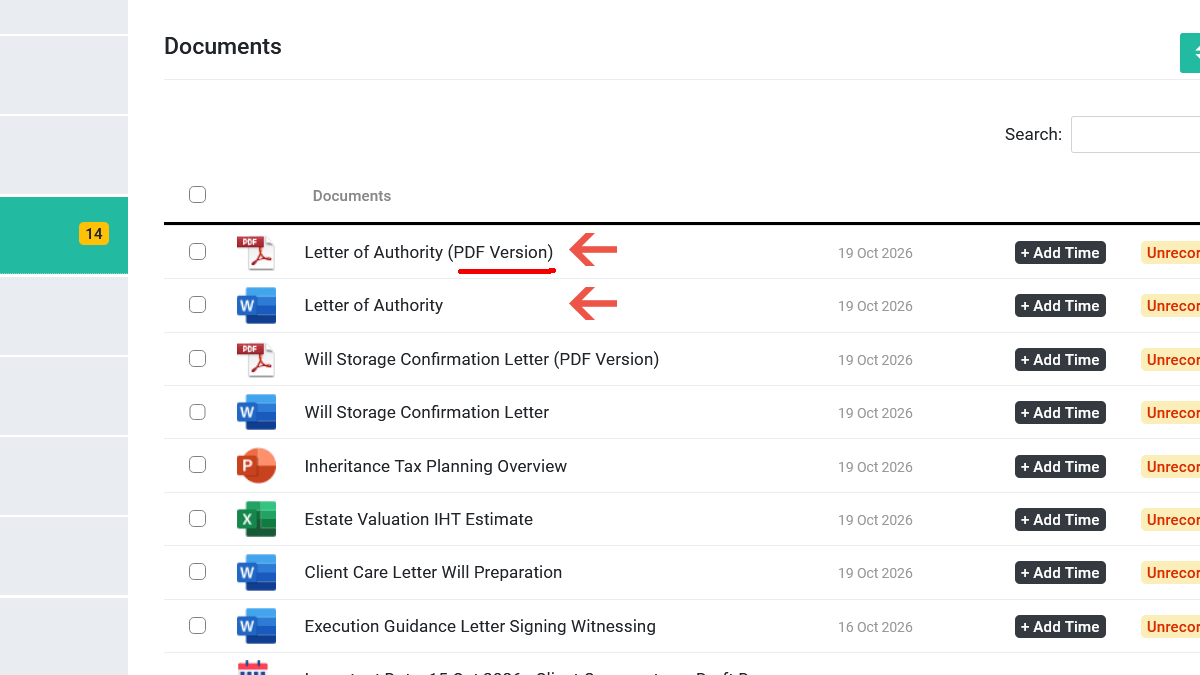
The updated Word document is saved to the matter, along with a PDF copy that's ready to share with your client.
Click either file to check your changes.
If you need more help or have any questions, please visit legalworkspace.co.uk/help or contact our support team. Thank you.
What do I need before editing documents online?
Before you edit a document online, make sure you have:
- Microsoft 365 connected to Legal Workspace. It only takes a couple of minutes: see How to Connect Microsoft 365 to Legal Workspace.
- A Word document in .docx format saved in the matter's Documents & Letters.
- Pop-ups are allowed for Legal Workspace because Word online opens in a pop-up window.
How to edit a Word document online, step by step
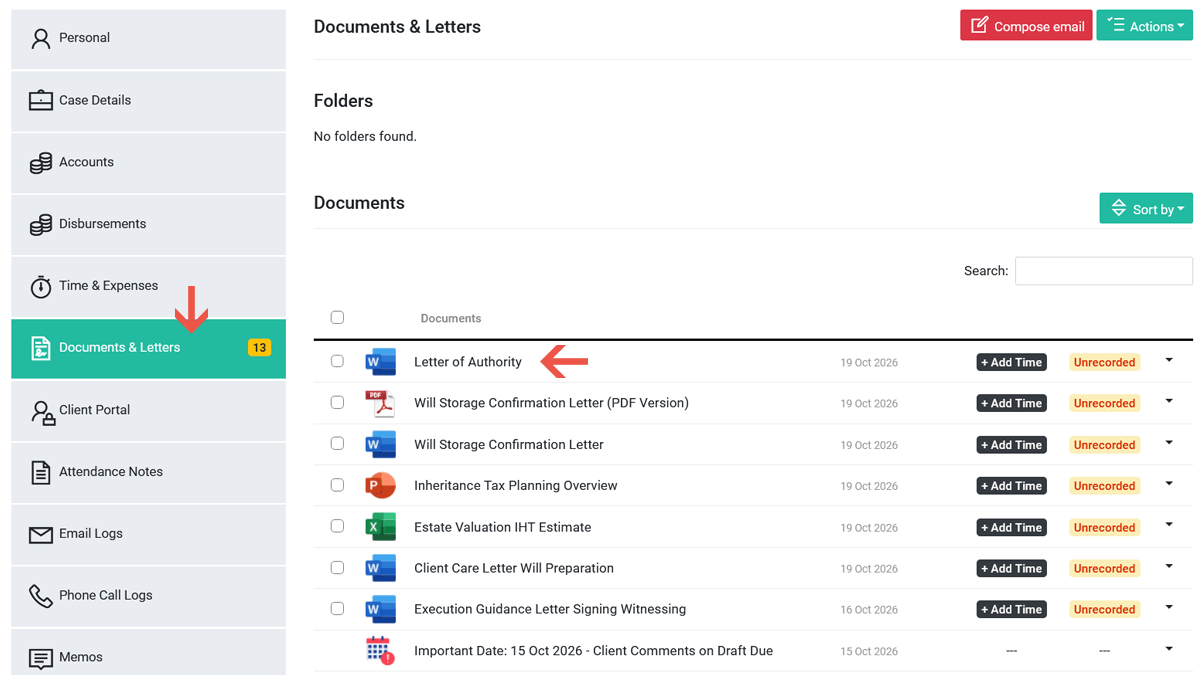
Step 1: Open the document in Documents & Letters
Open the matter, click Documents & Letters, then click the Word document you want to edit.
Step 2: Click Edit in the preview
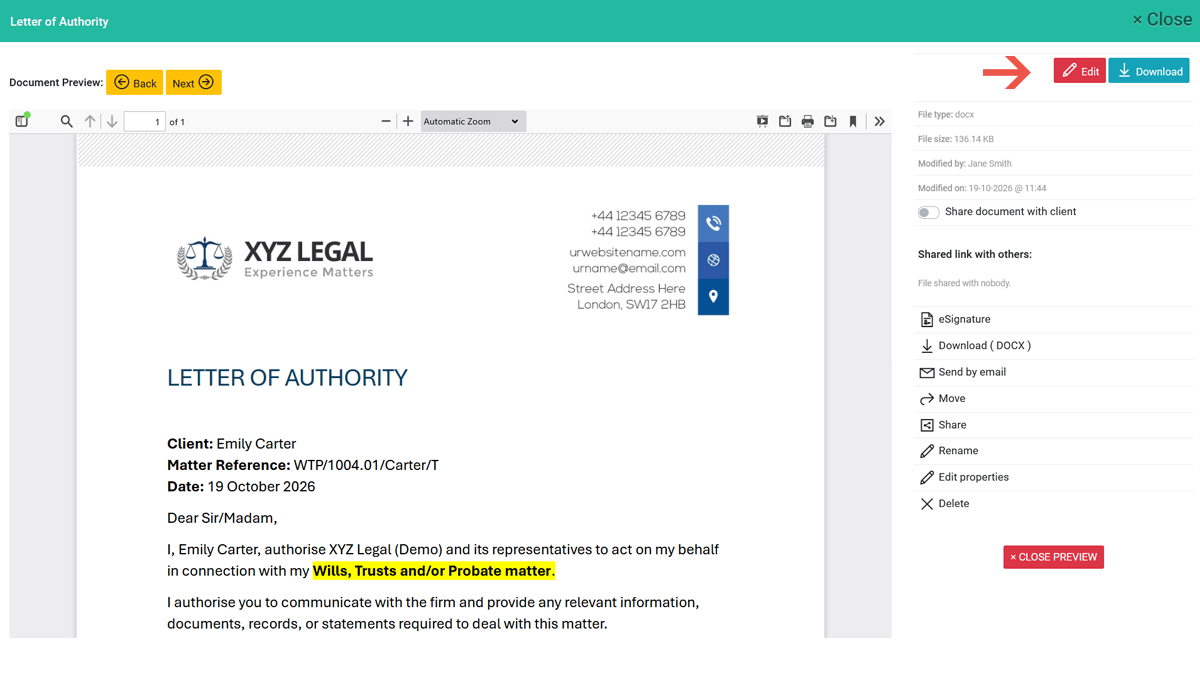
A preview of the document opens in a pop-up window. Click Edit in the top right corner.
Step 3: Edit the document in Word online, then close the editor
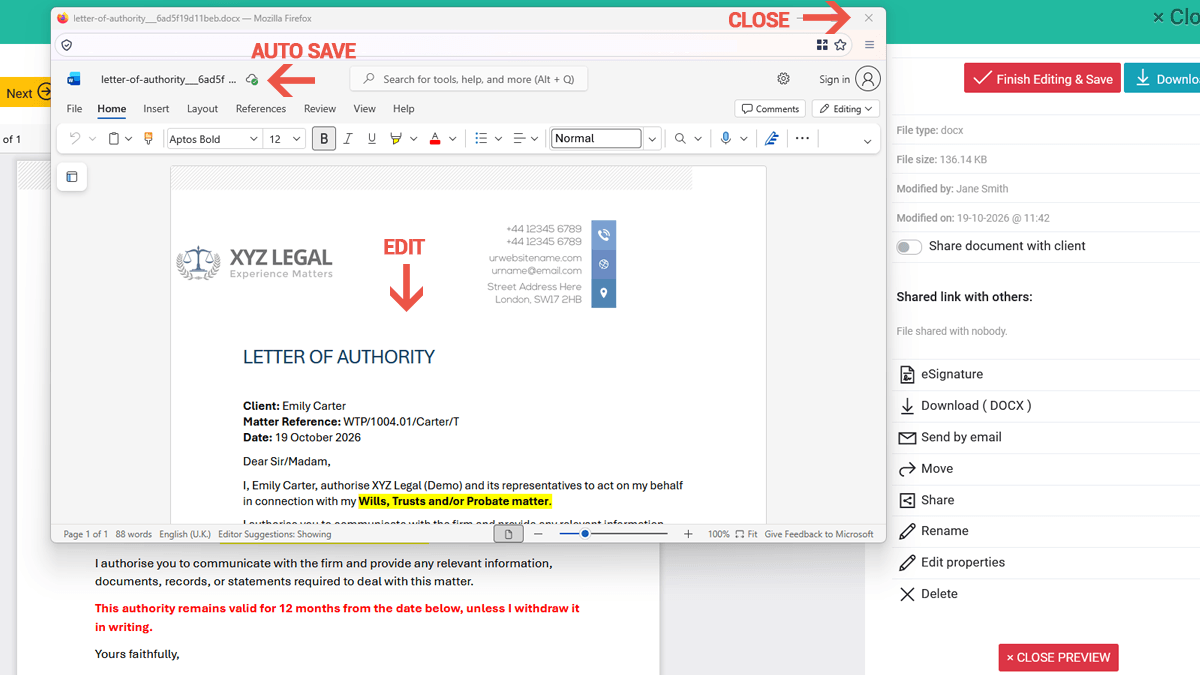
The document opens in Word online in a new window. Edit it just as you would in Word on your computer. Your changes are saved automatically as you type. When you've finished and the editor shows Saved at the top, close the Word online window. Closing it makes sure Microsoft has finished saving your latest changes.
Editor didn't open? Your browser has probably blocked the pop-up. Allow pop-ups for Legal Workspace and click Edit again.
Step 4: Click Finish editing & save and confirm
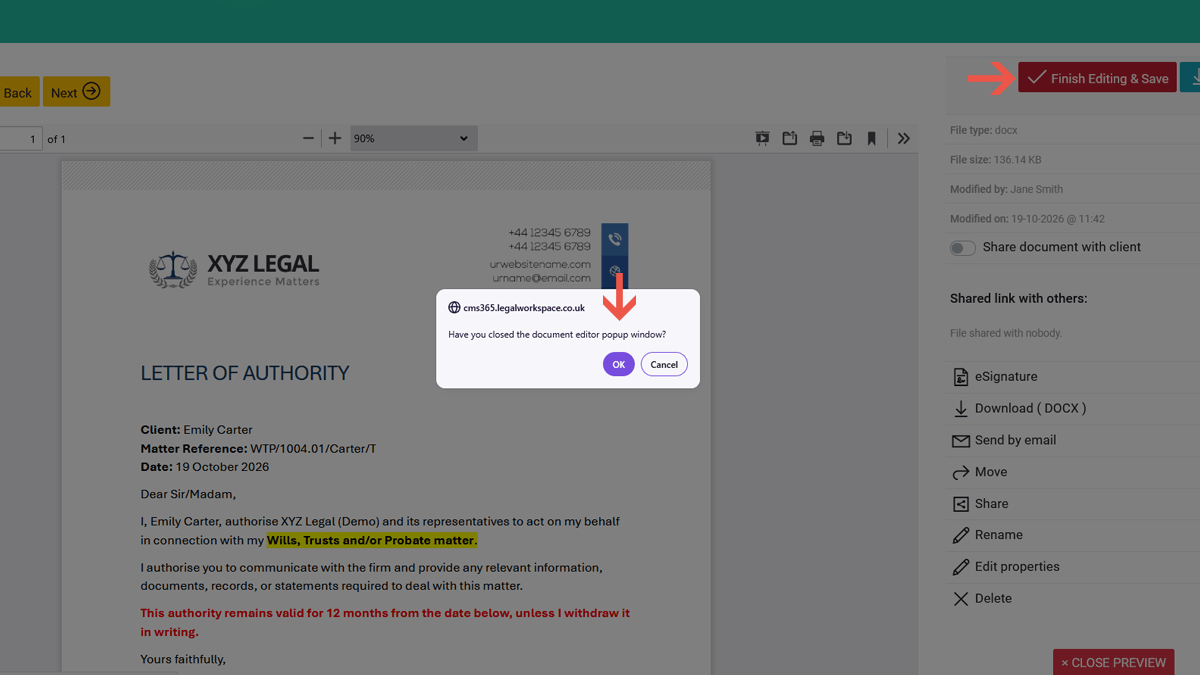
You're back in the preview window, where the button now says Finish editing & save. Click it. Legal Workspace then asks, "Have you closed the document editor popup window?" If you have, click Ok. If the editor is still open, click Cancel, close it, then click Finish editing & save again.
Step 5: Check the updated document and PDF
Legal Workspace saves the updated Word document to the matter and creates a PDF copy automatically. You're taken back to Documents & Letters, where both up-to-date versions are listed, ready to send or share with your client. Click either file to check your changes.
Why edit Word documents online in Legal Workspace?
Editing online keeps every document on the matter, with no downloading, re-uploading or searching for the latest copy. When you save, Legal Workspace stores the updated Word document in the matter's Documents & Letters and creates a PDF copy automatically, so you always have a version ready to email to a client, send for e-signature or file.
- The latest version is always on the matter, so colleagues see exactly what you've changed.
- An automatic PDF copy is created every time you save.
- Edit from any computer with a web browser. You don't need Word installed on the computer you're using.
- Your changes save as you type, so you won't lose work if you're interrupted.
Can I edit Excel and PowerPoint files online too?
Yes. Excel spreadsheets (.xlsx) and PowerPoint presentations (.pptx) work exactly the same way. Open the file from Documents & Letters, click Edit, make your changes in Excel or PowerPoint online, close the editor, then click Finish editing & save. The updated file and a PDF copy are saved to the matter, just as they are for Word documents.
Troubleshooting editing documents online
If a document won't open for editing, or your changes don't appear, these are the most common causes and how to fix them.
Check that Microsoft 365 is connected: the integrations page in Settings should show a Disconnect Microsoft button. Also check the file is a .docx, .xlsx or .pptx file. Older formats such as .doc or .xls need saving in the newer format first. If you still can't see it, your user permissions may only allow viewing documents, so ask your Legal Workspace administrator.
Your browser is almost certainly blocking pop-ups. Allow pop-ups for Legal Workspace (there's usually an icon at the right of the address bar), then click Edit again.
Legal Workspace asks whether you've closed the editor. Click No, close the Word online window, then click Finish editing & save again and choose Yes. Closing the editor first makes sure your latest changes are included.
Microsoft may not have finished saving when the editor was closed. Next time, wait until the editor shows Saved before closing it. To fix this document, open it again and click Finish editing & save.
Legal Workspace creates the PDF automatically after you save. Wait a few seconds and refresh Documents & Letters. If it still hasn't appeared, open the document, click Edit and save again, then contact our support team if the problem continues.
Only while you’re editing it. When you click Edit, Legal Workspace places a temporary copy of the document in your OneDrive so you can work on it in Word online. When you click Finish editing & save, Legal Workspace saves the updated document to the matter, creates the PDF copy and removes the temporary copy from your OneDrive. The matter in Legal Workspace always holds the official version.
Need help editing documents online?
If you've followed this guide and still can't edit or save a document, contact the Legal Workspace support team for help.
Please include a short description of the problem, the document name and matter reference, and any error message you see. Don't send your Microsoft password or attach confidential client documents unless our support team asks you to.


